If you design for a Flutter team, you know these two. The message you send at 5:52 PM: “Tiny thing 🙏 the padding on the order card should be 4px, not 6px.” And the error screen you never designed, because your file only showed the happy path, so whoever was coding at 6 PM made one up.
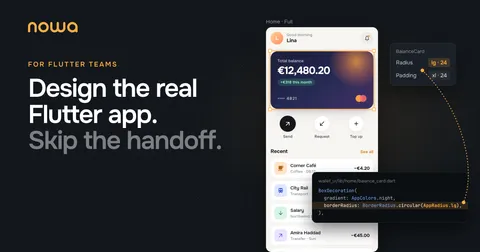
Both happen because you design a picture of the app, and someone else builds it again in Flutter. This post shows the other way, step by step: designing directly in your team’s Flutter app, without writing code. (If you want the gory details of why Figma and Flutter never quite match, line heights included, we wrote a whole post about the handoff.)
You can design directly in your team’s Flutter app. In Nowa, you work on the app’s real UI, by hand on a visual canvas or with your own AI agent. You check every state, play and share the prototype, and your work lands in the repo as a commit. Developers keep the logic, so you can’t break it.
Not the designer on your team? Here’s the guide for developers and the guide for PMs.
What you own, and what you can’t break
Two beliefs sit behind everything below.
Designers should design with the material the app is made of. A Figma mock of a food app is a photo of food. It can look amazing, but nobody can taste it. When you design in Flutter, the same technology the app runs on, you see what users see: text that wraps, layouts on actual screen sizes, the loading spinner, the motion. You make better calls because of it, and you can design whole experiences instead of single frames.
Designers should own the UI, all of it. The screens, the design system, the animations, and every state a screen can be in. Nothing gets rebuilt later by someone else.
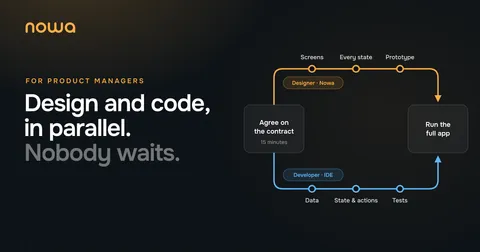
To make that safe, your team splits the app in two. The UI lives in its own package, which you own and edit in Nowa. The logic lives in the app, which developers own and build in their IDE. A small contract connects the two.

You can’t break the logic from the UI package, because it can’t reach it. And every change you make goes through the same pull request review as everyone else’s.
Do you need to know Dart for any of this? Not really. The canvas and your AI agent write the code, and you judge the result where it matters, on the screen. The code is there to read whenever curiosity strikes.
Your week at a glance
Meet Bite, a pretend food delivery app, and its order tracker: the screen you stare at while you wait for dinner. It has everything that makes UI work annoying: loads of states, a confirmation before cancelling, a courier who keeps moving, and a live map. You may get hungry.
Two people build it. Maya, the designer, works in Nowa. Omar, the developer, works in VS Code with an AI agent and the simulator, same as always. Here’s their week:

The rest of this post follows Maya’s lane, one step at a time.
Step 1: Agree on the contract with your developer
On Monday morning, Maya and Omar sit down together and answer two questions: what does this screen show, and what can the user do on it? The answers become a small contract file in the UI package. It takes about 15 minutes.
That’s the only meeting they need to get going. (We know. At a big company, that’s the least believable sentence in this post.) If your developer wants to see what the contract looks like in code, send them the developer’s guide.
Step 2: Set up your design system
Bite’s brand lives in Nowa’s Themes panel: brand colors (picked one by one, or generated from a single seed color), the default font, text styles, and how buttons and fields look. Under the hood it’s a regular Flutter ThemeData in the UI package, the same one the app runs with, so there’s no second library to keep in sync.
Maya tries blue as the brand color and watches every screen on the board change at once. Then Maya decides orange had more appetite and switches back. No ticket, no handoff.
When Maya picks a color for a single widget, it comes from the theme too (Theme.of(context).colorScheme.primary in the code), not a hex value someone has to hunt down later.
Step 3: Connect your own AI agent
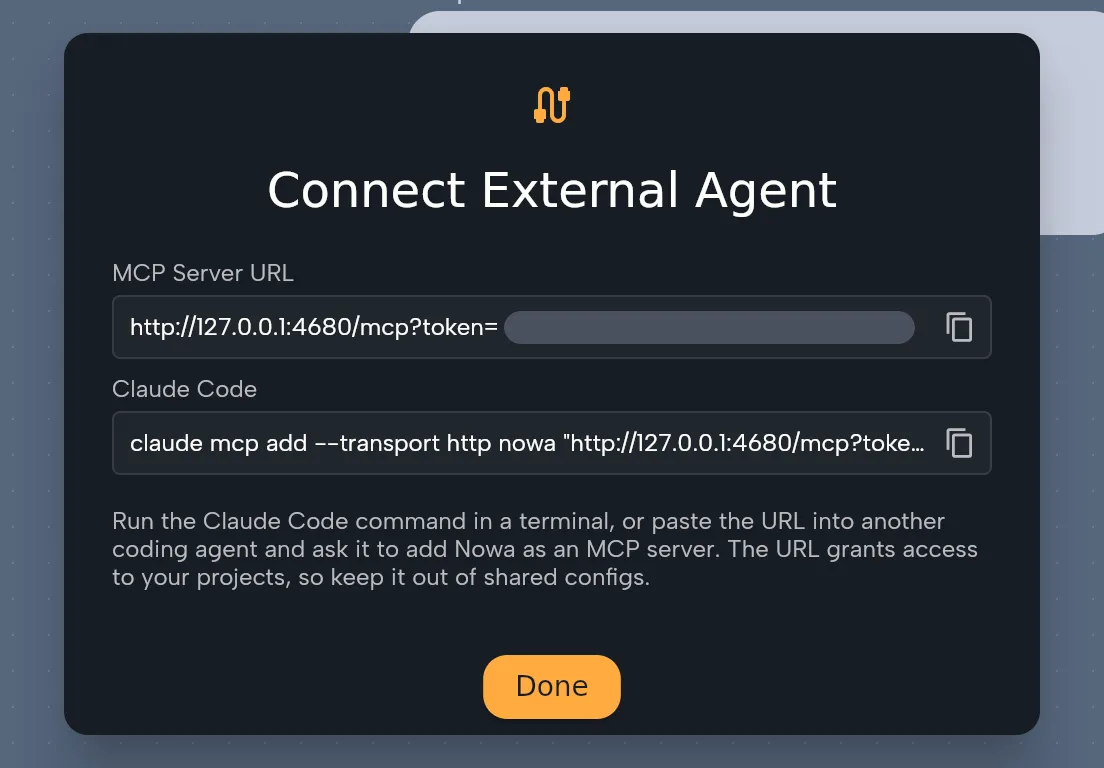
Nowa runs an MCP server, so you can bring the AI agent you already use, like Claude Code, Cursor, Codex or any other agent that can add an MCP server by URL, instead of a built-in one.
That’s good for privacy. The MCP server runs on your own machine and only accepts local connections, and the agent itself runs under your company’s usual AI accounts and rules. The agent is also already set up, with your conventions and the rest of your tools. And you don’t pay for tokens twice, once for your agent and again inside a design tool.
Connecting takes a minute: open Connect External Agent in Nowa, copy the server address and add it to your agent (step by step).
Step 4: Design with the canvas and your agent
Maya designs on Nowa’s visual canvas: move things around, tweak padding, swap a font. The canvas draws the actual widget code with Flutter, so nobody rebuilds it later.
For bigger changes, Maya brings the agent, Claude Code in this case. The trick is selection. Maya clicks a part of the UI on the canvas and writes a prompt about “this”. The agent asks Nowa what’s selected and works on exactly that part.
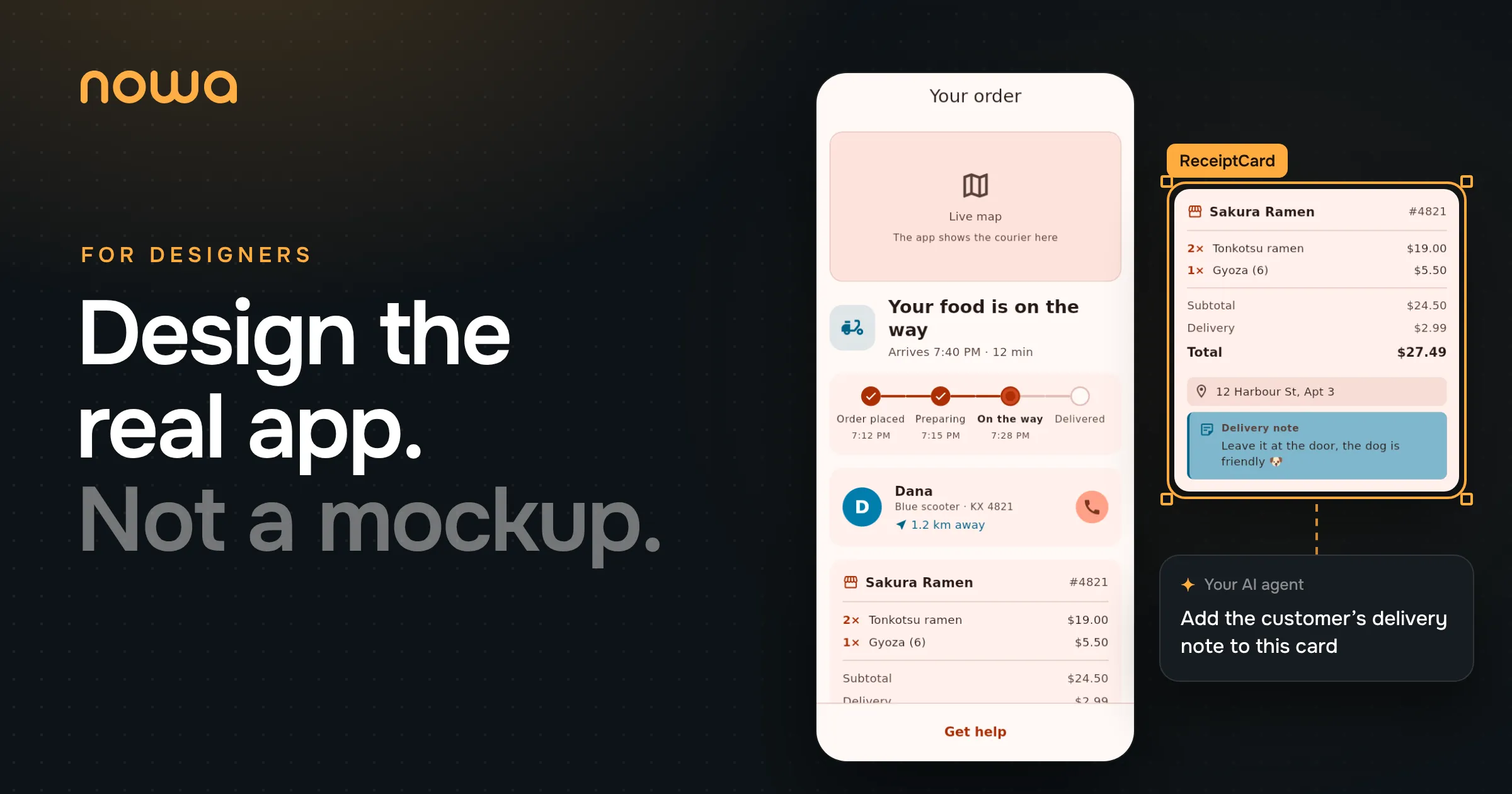
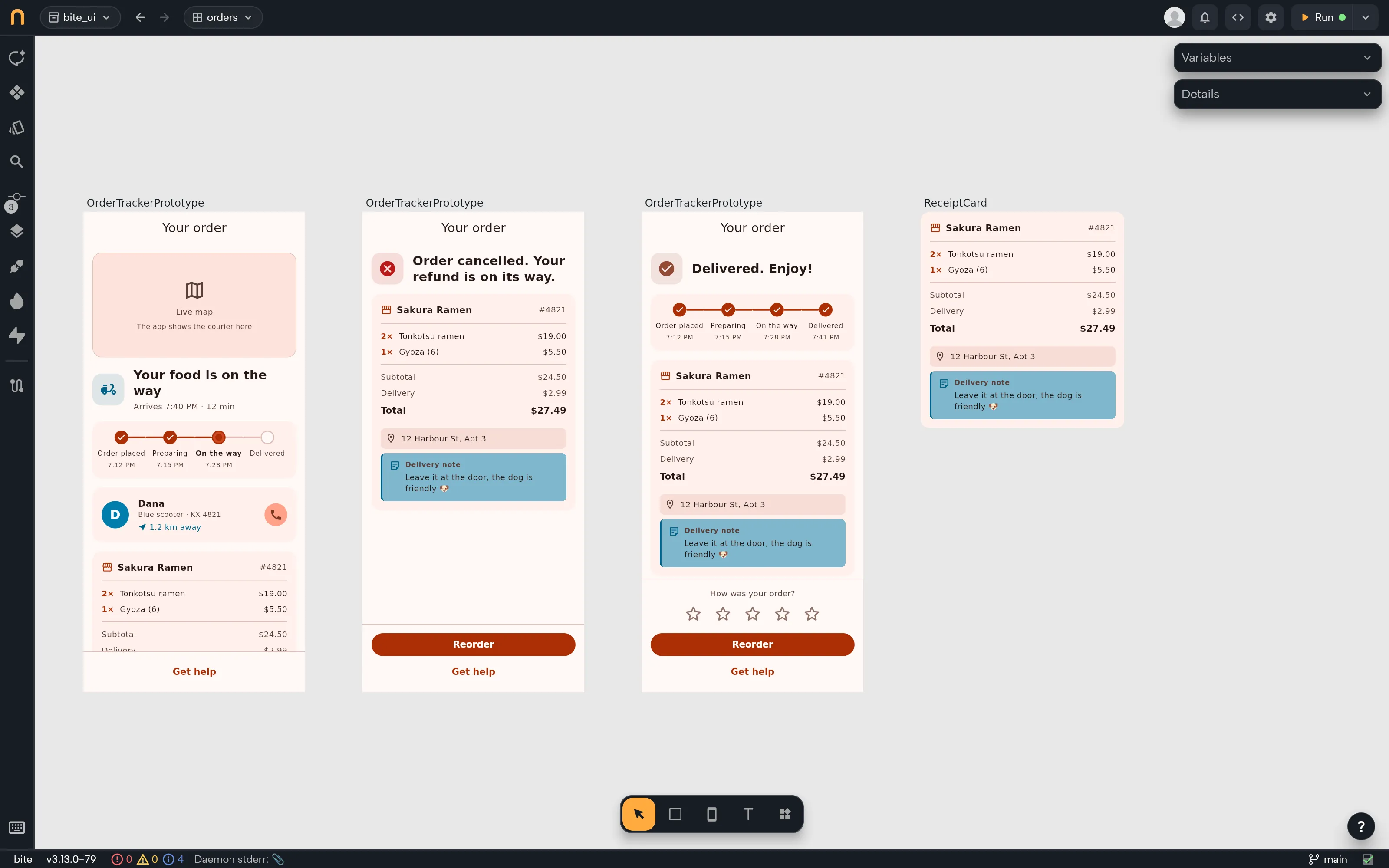
Here, Maya selects the receipt card and asks for the customer’s delivery note. You know the one: “Leave it at the door, the dog is friendly.”
The note is new data, so the agent also added an optional field for it to the contract, with a mock note for the states. Because the field is optional, the app still compiles, and Omar can hook it up to real data whenever. Adding optional fields is the one contract change you make on your own. Renaming or removing things stays a conversation.
Motion works the same way. Maya asks the agent to fade the screen between order states instead of jumping, then hits Play to try it. The timing gets tuned by the person who cares about it, not described in a ticket.
Step 5: Design every state on one board
Remember the error screen someone made up at 6 PM? Here, every state gets designed on purpose.
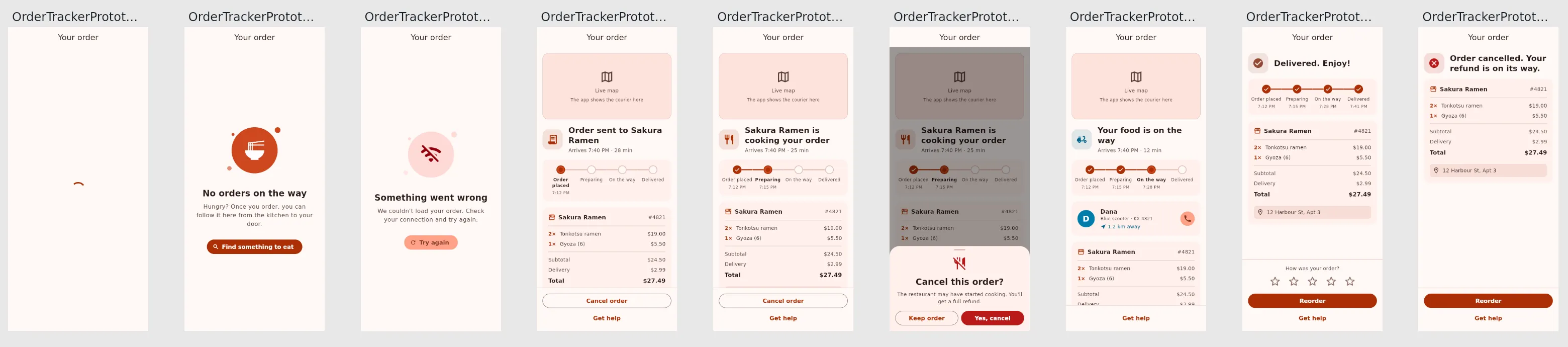
Next to the widgets, the UI package has a design file with mock data for every state the tracker can be in. Maya (or the agent) writes those mocks once, and Nowa lays all of them out on a board, Nowa’s word for a canvas full of live screens: loading, no order, failed, placed, preparing, the cancel confirmation, on the way, delivered and cancelled. Change a widget once and every state updates, like the delivery note did:
Step 6: Play it and share it with your PM
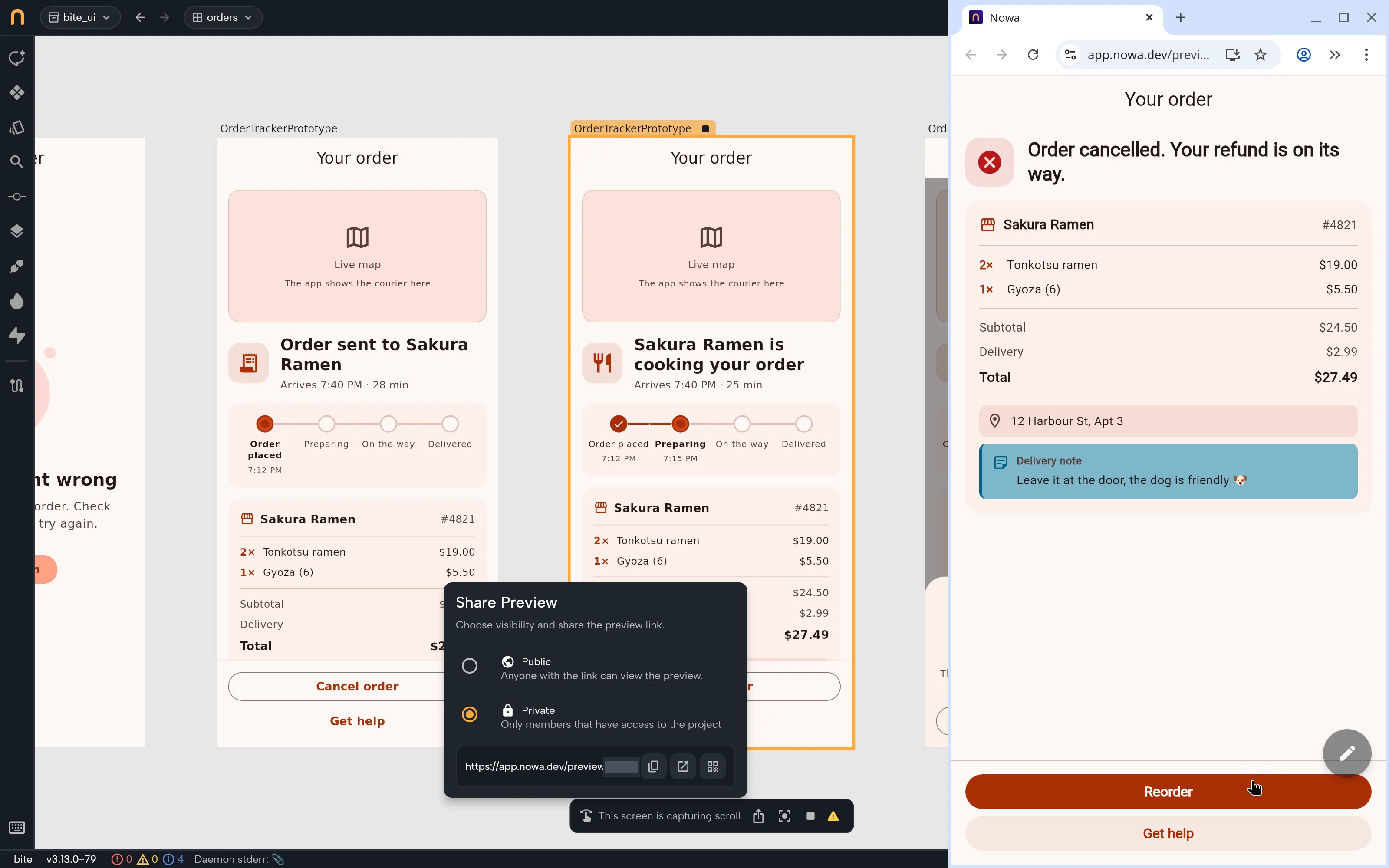
A screenshot can’t tell you whether a flow feels right. Maya hits Play on any screen and taps through it like a hungry customer would: cancel the order, confirm, watch it cancel, reorder. A small prototype in the design file fakes the responses, so there’s no backend and no waiting on Omar.
When the flow feels right, Maya clicks Share preview and drops the link in the team chat, so the PM can tap through the same prototype in a browser. Private links only open for people on the project, and sharing works for projects synced to Nowa’s cloud (more on sharing).
Step 7: Commit and push
Maya commits from Nowa’s Git panel, on a branch, like everyone else on the team. The list of changes only touches the UI package. Commit All, Publish Branch, then Maya opens the pull request on GitHub the usual way.
Step 8: Pull and run the full app
Meanwhile, Omar has built the logic and pushed it. Maya clicks Sync in the Git panel to pull it, then hits Run. This is the one time Nowa runs your logic: Run builds your actual app with the normal Flutter toolchain, the same way flutter run does. On a Mac or Windows, the app shows up inside Nowa in a device frame. On Linux, where we recorded this, it opens in the browser.
Now Omar’s logic is driving. The order moves from preparing to on the way by itself, the courier crawls across the map, and the delivery note on the receipt comes from the order instead of a mock.
And Maya isn’t done. On Thursday the status icon looks too small? Change it, commit it. Omar isn’t blocked and doesn’t need to know until the pull request shows up.
What changes for you
You design each screen once, in the material the app is made of. Every state gets designed instead of made up at 6 PM. And your padding fixes become commits, not messages to a developer.
Here’s the whole product in about a minute:
If you’d like to see it on your team’s own app, I’d love to show you.
See Nowa for Flutter teams →
Happy building,
Anas